No, HandBrake does not use libfdk-aac in its official builds. The FDK AAC encoder was removed in version 0.10.5 because of a licensing problem, and HandBrake now relies on the FFmpeg AAC encoder on Windows and Linux and on Apple’s CoreAudio encoder on macOS. The rest of the audio list is long: AAC, HE-AAC on Mac, MP3, Vorbis, Opus, AC3, E-AC3, FLAC and ALAC, plus a passthru option for several more formats.
This guide covers every audio codec you can pick in HandBrake, why FDK AAC is gone and what replaced it, how the AAC encoders compare, and which settings fit Plex, phones and surround sound. At the end you will find the container table and a short FAQ.
| Question | Short answer |
|---|---|
| Does HandBrake use libfdk-aac? | No. It was dropped from official builds in 0.10.5 for licensing reasons. |
| What audio codecs are available in HandBrake? | AAC, HE-AAC (Mac only), MP3, Vorbis, Opus, AC3, E-AC3, FLAC and ALAC, plus passthru. |
Audio codecs available in HandBrake
HandBrake handles audio in two ways. It can encode a track to a new codec, or it can pass it through without any change. The list of audio codecs available in HandBrake depends on the platform and on the container you choose for the output file.
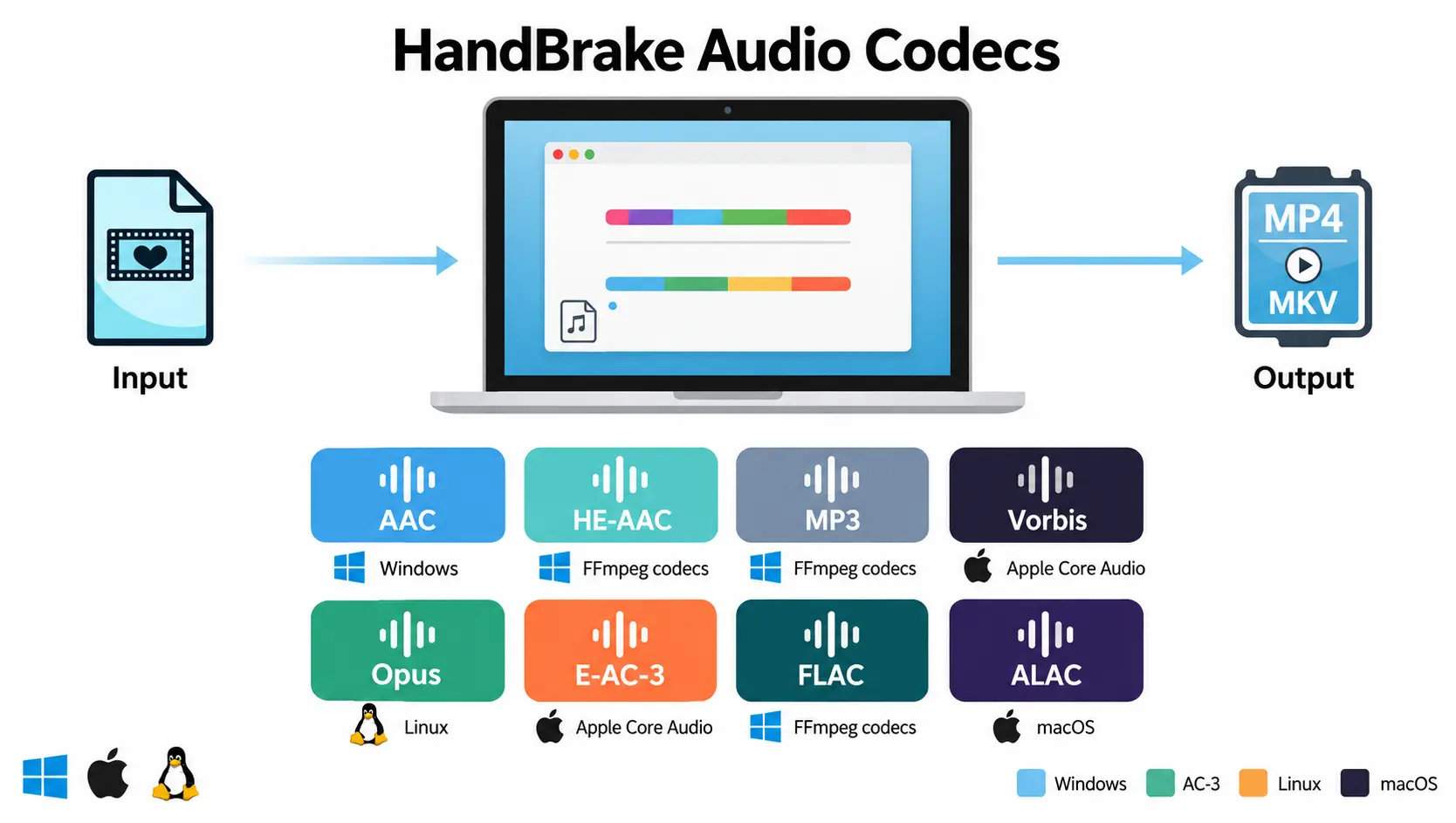
The table below follows the current HandBrake documentation on audio codecs.
| Codec | Encoder | Where it works |
|---|---|---|
| AAC | FFmpeg AAC (avcodec) on Windows and Linux, CoreAudio on macOS | All platforms |
| HE-AAC | CoreAudio | macOS only |
| MP3 | lame | All platforms |
| Vorbis | Vorbis encoder | All platforms |
| Opus | libopus | All platforms |
| AC3 and E-AC3 | FFmpeg | All platforms |
| FLAC (16 and 24-bit) | FFmpeg | All platforms |
| ALAC (16 and 24-bit) | HandBrake | All platforms |
AAC (avcodec) and CoreAudio AAC
AAC is the default and the safest choice. Almost every phone, tablet, TV and media player decodes it, and it works in both MP4 and MKV. On Windows and Linux, HandBrake uses the FFmpeg AAC encoder, which appears in the list as AAC (avcodec). On a Mac it uses Apple’s CoreAudio encoder, which is considered the higher quality of the two.
Our explainer on the AAC codec covers how the format works and why it became the standard for video files.
HE-AAC on Mac only
HE-AAC is a version of AAC built for very low bitrates. It drops the high frequencies and rebuilds them on playback, so it only helps below roughly 80 kb/s for stereo. HandBrake offers it only on macOS, because the FFmpeg AAC encoder on Windows and Linux does not support it.
MP3, Vorbis and Opus
MP3 uses the lame encoder and exists mostly for old players. Vorbis is an open format that fits MKV and WebM. Opus uses libopus and gives very good quality at low bitrates, which makes it a fit for speech and for small files, though device support is still thinner than for AAC.
AC3 and E-AC3
AC3 is the Dolby Digital format used on DVDs and many Blu-rays, and E-AC3 is its newer version. Both are good when you want 5.1 sound that plays on a TV, a receiver or a streaming box. They are common choices for Plex libraries that need surround sound.
FLAC and ALAC
FLAC and ALAC are lossless, so they keep every detail of the source in 16 or 24-bit. Files get much bigger, which only makes sense when quality matters more than size. For a refresher on why that matters, see our guide to hi-res audio.
Does HandBrake use libfdk-aac?
This is the question most people type, and the answer has not changed in years. The official builds of HandBrake do not include libfdk-aac. The FDK AAC encoder was available in older versions, and many users still remember it as the best AAC choice.
Short answer and the 0.10.5 change
FDK AAC disappeared from HandBrake starting with version 0.10.5, released in February 2016. Nightly builds stopped including it as well, and the team told anyone distributing an older release to stop doing so. Current versions, including the 1.x line, do not list FDK AAC or HE-AAC (FDK) anywhere in the audio drop-down.
Why FDK AAC was removed
The reason is the license. A post on the HandBrake forum explains that there is a dispute about whether the FDK license is compatible with the GPL, and that a copyright complaint from FFmpeg made it impossible to keep providing it. HandBrake could not ship a binary with FDK inside without breaking the terms, so it dropped the encoder from every official download.
What HandBrake uses instead
On Windows and Linux, HandBrake uses the FFmpeg AAC encoder. On a Mac, it uses CoreAudio, so Mac users saw no change at all. The team described the replacement as lacking compared with FDK but passable for most people. A HandBrake maintainer later put it more plainly, saying the FFmpeg encoder gives moderately worse quality than the Apple or FDK encoders.
Can you still get libfdk-aac in HandBrake?
Yes, but only if you compile HandBrake yourself. The configure script has a switch, --enable-fdk-aac, that builds the encoder in. The result is a custom build, and you are not allowed to share it with other people. You also have to build it again after every update, because the normal updater overwrites the files. The HandBrake forum does not support custom builds, so use this route only if you accept that.
How to build HandBrake with FDK AAC on Windows
People who want FDK AAC on Windows usually build HandBrake on Linux and cross-compile it. A common guide on the VideoHelp forum recommends Ubuntu 18.04, in a virtual machine or a dual boot, and a 1.x release tag of the HandBrake source. The overview looks like this:
- Install the build dependencies and clone the HandBrake repository.
- Check out a stable release tag, for example a 1.2.x or 1.3.x version.
- Build the MinGW-w64 toolchain with the script that comes with the source. It takes 10 to 20 minutes and several gigabytes of space.
- Run
./configurewith the cross-compile target and the FDK AAC flag, then build. - Copy
HandBrakeCLI.exeandhb.dllinto your Windows HandBrake folder.
The GUI reads the encoder from hb.dll, so the copied file is what adds FDK AAC. The build counts as custom, the HandBrake forum will not support it, and you are not allowed to give it to anyone else. Updating HandBrake through the normal updater overwrites hb.dll, so you have to repeat the build to keep the encoder.
FDK AAC in VidCoder and HandBrakeCLI
The same rule applies to the tools built on top of HandBrake. HandBrakeCLI and VidCoder use the same libraries as the GUI, so they offer FDK AAC only when the underlying build includes it. VidCoder users who saw the AAC (FDK) and HE-AAC (FDK) options on older versions lost them at the same time as everyone else. Encoding the audio separately with a standalone FDK tool and then muxing it into the file is another route, though it takes more steps.
AAC (avcodec) vs CoreAudio vs FDK AAC quality
The three encoders produce standard AAC, so any player that handles AAC will play the files from all of them. The difference is how much quality each one keeps at the same bitrate. Listening tests discussed on the Hydrogenaudio and VideoHelp forums rank the encoders in a similar order.
| Encoder | Where | Quality at a similar bitrate |
|---|---|---|
| CoreAudio AAC | macOS only | Very good, close to FDK |
| FDK AAC (libfdk-aac) | Custom builds only | Very good, strong at low bitrates |
| FFmpeg AAC (avcodec) | Windows, Linux and Mac builds | Good, a step lower |
In a double-blind test at 96 kb/s, one forum poster noted that the Apple and FDK encoders ranked best, while the old FAAC encoder ranked last. FFmpeg, on the other hand, stated in December 2015 that its own AAC encoder was transparent at 128 kb/s for most samples tested. Both claims can be true, since a higher bitrate hides the weaker spots of the encoder.
The practical advice is simple. If you use the FFmpeg encoder, raise the bitrate a little, for example from 160 to 192 kb/s. The cost in file size is small, and it closes most of the gap. If you also listen on wireless earbuds, our comparison of SBC and AAC shows how the same format behaves over Bluetooth.
What FDK AAC offers: LC, HE-AAC and HE-AAC v2
The FDK library supports several AAC profiles. AAC-LC is the normal profile and works everywhere. HE-AAC and HE-AAC v2 are built for low bitrates, with HE-AAC v2 aimed at stereo speech and music at very small sizes. In older HandBrake versions this showed up as two separate options, AAC (FDK) and HE-AAC (FDK), next to the avcodec choice.
AAC (FDK) vs HE-AAC (FDK) in older versions
Users of older versions often asked which of the three AAC options to pick. The advice from forum threads was consistent. HE-AAC (FDK) is meant for very low bitrates, below about 80 kb/s for stereo and 256 kb/s for 5.1, and it makes sense only at those rates. On a device without HE-AAC support, the player falls back to the LC part of the stream. AAC (FDK) at normal bitrates gave better quality than avcodec at the same rate, according to several posters, while another pointed out that both encoders produce standard AAC with no compatibility problems.
Known problem: distortion in the FFmpeg AAC encoder
A user on the HandBrake GitHub reported that the avcodec encoder sometimes adds distorted, hissy high frequencies, around 10 to 16 kHz, even at 160 kb/s, which other encoders did not do on the same file. The maintainers closed it as an upstream request and pointed to FFmpeg, and an FFmpeg developer said he was rewriting the AAC encoder with a new psychoacoustic model. If you hear a sizzle on cymbals or voices, a higher bitrate helps, and so does CoreAudio on a Mac.
Alternatives when you need FDK AAC
If you want FDK quality without a custom build, you can encode the audio outside HandBrake and add it to the file afterward. This takes more steps, but nothing is distributed, and it works on any platform.
- Standalone fdkaac encoder: a command-line tool that encodes WAV or FLAC to AAC with the FDK library, then you mux the track into MKV or MP4.
- FFmpeg with libfdk_aac: a local FFmpeg build that includes the encoder, again for personal use only.
- Apple’s encoder through qaac: a way to use the Apple AAC encoder on Windows, which forum users rank among the best AAC encoders.
- Higher bitrate with avcodec: the easiest fix, for example 192 kb/s instead of 160.
For most videos, the last option is the practical choice. The gap between encoders matters more on music than on dialogue, and it shrinks as the bitrate goes up.
Encoding vs passthru in HandBrake
When you open the audio tab, HandBrake gives you a choice for each track. You can encode it to a new codec, or you can use passthru, which copies the original bits into the output file. Passthru causes no quality loss, but the tracks can be large, and the player has to support the original format.
HandBrake can pass through AC3, E-AC3, DTS, DTS-HD, TrueHD, Opus, Vorbis, MP3, MP2, AAC, FLAC and ALAC. The Auto Passthru option picks the right format for you. If the source format is not supported, or the output container cannot hold it, HandBrake falls back to the fallback encoder, and the default fallback is AAC.
The Audio and Subtitle Defaults panel lets you set this once for every file. You can choose which tracks to select, which languages to keep, whether Auto Passthru is on and which fallback encoder to use. The bitrate, mixdown and samplerate controls in that panel apply to the fallback encoder.
How to change audio settings in HandBrake
You can set the audio for each file in a few steps. The same screen applies whether you use a preset or build your own.
- Open the source and pick a preset, or keep the default.
- Go to the Audio tab and look at the tracks HandBrake selected from the source.
- Choose a codec for each track, for example AAC (avcodec), AC3 or Auto Passthru.
- Set the mixdown, such as stereo, Dolby ProLogic II or 5.1.
- Set the bitrate, or switch to quality-based encoding if the codec allows it.
- Check the container on the Summary tab, since it decides which codecs are valid.
- Save the choices as a preset so you do not repeat them for every file.
If you add a second track, give it a different codec. A common pair is AAC stereo for phones and an AC3 or E-AC3 passthru track for a receiver. Order matters too, since many players start with the first track in the list.
HandBrake audio bitrate, quality and mixdown settings
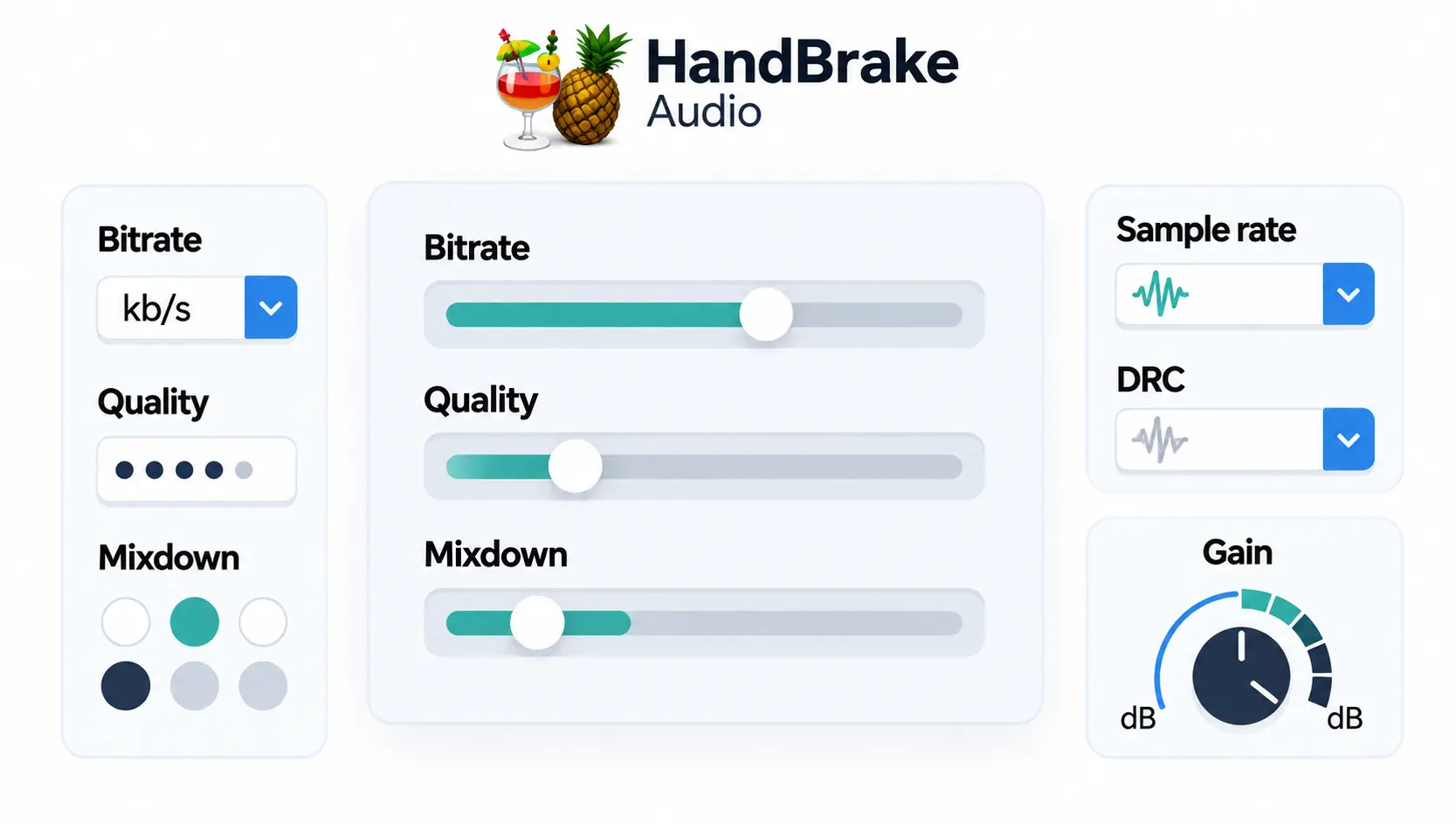
The audio tab has more controls than most people use. A few of them change the result in a way you can hear, so they are worth understanding. The HandBrake guide on audio quality adds a short list of which encoders support which mode.
Average bitrate vs quality-based encoding
Most encoders work with an average bitrate that you set in kb/s. The exceptions are FLAC, ALAC and TrueHD, which are lossless. AAC, MP3, Vorbis and Opus can also use quality-based encoding, where you set a quality value and the encoder decides the bitrate. The quality scale changes the file size much less than the video quality slider does, so audio is rarely where you save space.
Mixdown
The mixdown setting decides how many channels the output has. The options include mono, stereo, Dolby Surround, Dolby ProLogic II and 5.1 surround. HandBrake defaults to Dolby ProLogic II, which sounds good on both stereo and multichannel systems. If the source has 5.1 and you want to keep it, choose 5.1 (the 6-channel discrete option) or use passthru. For more on how multichannel sound works, see our guide to 7.1 surround sound.
Samplerate, DRC and gain
The samplerate is best left on auto, which keeps the source rate. DRC (dynamic range compression) makes quiet parts louder and loud parts softer, which helps when you watch at night. The gain control raises or lowers the volume in decibels, and it does not work with passthru, because that copies the track unchanged.
Best HandBrake audio settings by use
There is no single best audio codec for HandBrake, because the right choice depends on where you play the file. The values below are common recommendations from guides and forum threads, not official numbers from HandBrake.
| Use | Codec | Bitrate or mixdown |
|---|---|---|
| Plex and Apple TV | AAC, or AC3 passthru | 160 kb/s stereo |
| Phones, tablets and Android | AAC | 128 kb/s or higher |
| Home theater, 5.1 | AC3 or E-AC3 passthru | Source bitrate |
| Small files and speech | Opus in MKV | Low bitrate |
| Archive | FLAC or passthru | Lossless |
Plex and Apple TV
For Plex, AAC or AC3 with passthru direct-plays on most clients. A common setup is AAC at 160 kb/s with a stereo or Dolby ProLogic II mixdown for the main track. Many people add a second track with AC3 passthru for the receiver, since a single stereo track will not use a surround system. HandBrake also lists the ready-made Plex profiles in its presets, which you can start from.
iPhone, iPad and Android
For phones and tablets, use AAC at 128 kb/s or higher. Apple lists stereo AAC up to 160 kb/s for video on iPads, and Android handles the same without trouble. Stay with stereo, because most phones have only two speakers. HE-AAC is only worth trying on a Mac, and only below about 80 kb/s.
Blu-ray with surround sound
A Blu-ray rip often has a DTS-HD or TrueHD track. These formats can be passed through into MKV, but they have limited player support in MP4. A safer plan is to keep an AC3 track for compatibility and a second track as a lossless backup. If the source includes Dolby Atmos, our guide to Dolby Atmos explains what the format adds and why only some devices play it.
DVD rips
A DVD usually carries an AC3 track with 5.1 or stereo sound. For a file that plays on phones and TVs, a good setup is track one as AAC at 160 kb/s with a stereo or Dolby ProLogic II mixdown, and track two as AC3 passthru for a receiver. Many guides use exactly this layout, and it keeps the file size low.
DTS or Dolby: which one to keep
HandBrake can pass through DTS and DTS-HD, but it cannot encode them, so a DTS track stays DTS or gets converted to AAC, AC3 or another encoder. DTS has limited support in MP4, which is why MKV is the safer container for it. Dolby tracks (AC3, E-AC3 and TrueHD) are easier to play, and AC3 5.1 passthru works on most TVs and receivers. If you can choose, keep the Dolby track for compatibility and the DTS-HD or TrueHD track as a backup for a lossless copy.
Small files and speech
For talks, lectures and podcasts, Opus in MKV or WebM gives clear speech at a low bitrate, so the file stays small. Our upcoming Opus guide explains the format and the best bitrates. For music videos or movies, stay with AAC, since it plays on almost anything.
Audio in the HandBrake presets
The built-in presets already include audio choices, so you often do not need to touch the tab. Most general presets use AAC stereo, and several device presets add an AC3 track for surround sound. The Fast and HQ presets differ mostly in video, while the audio stays close to the same, so a custom preset is useful only when you want a different codec or a second track.
HandBrake AAC vs AC3: which one to pick
The choice between AAC and AC3 comes up in almost every Plex and media server thread. Both are common, both work in MP4 and MKV, and both give good results. The difference is in what each one is built for.
| Point | AAC | AC3 |
|---|---|---|
| Best for | Stereo, phones, tablets | 5.1 surround on TVs and receivers |
| Typical bitrate | 128 to 192 kb/s stereo | Source bitrate with passthru |
| File size | Small | Larger, because of more channels |
| Device support | Almost everything | TVs, receivers, Apple TV, game consoles |
If the source is stereo, AAC is the simpler pick and the file stays small. If the source has 5.1 and you play it on a surround system, AC3 or E-AC3 passthru keeps the full channel layout with no extra encoding. When you are not sure, keep both: one AAC stereo track and one AC3 track. Players such as Plex choose the track that fits the device, so the same file plays well on a phone and on a home theater.
The one thing to avoid is converting a 5.1 source to stereo AAC without a reason. You lose the surround channels, and you cannot get them back from the new file. Check the HandBrake audio settings and the mixdown before you start a long encode, since a rerun can take hours.
Which audio codecs work in MP4, MKV and WebM
The container you pick limits the codecs you can use. This is where the most common HandBrake audio errors start, so check it before you choose a codec.
| Container | Audio codecs |
|---|---|
| MP4 | AAC, MP3, AC3, E-AC3, TrueHD, Opus, FLAC, ALAC |
| MKV | AAC, MP3, AC3, E-AC3, TrueHD, Vorbis, Opus, FLAC, ALAC, plus DTS passthru |
| WebM | Vorbis, Opus |
MKV is the most flexible and accepts nearly everything, including DTS passthru. MP4 works on the widest range of devices, but DTS and DTS-HD are poorly supported there. WebM is limited to Vorbis and Opus, and it is mainly meant for the web.
What changed in recent HandBrake versions
The audio list has grown over the years. Version 1.0.0 offered AAC, HE-AAC on Mac, MP3, Vorbis, AC3 and FLAC for MKV only. Opus, E-AC3 and ALAC arrived later, and today the documentation lists all of them.
HandBrake 1.10 updated the bundled FFmpeg to 7.1.1 and added proper E-AC3 and Atmos signaling for MP4 files. It also brought stability fixes for Opus and Vorbis in WebM and better behavior when a source has no audio track. None of these updates mention FDK AAC, so the answer to the main question stays the same.
Common HandBrake audio problems
- No audio after encoding: often a DTS or TrueHD track passed through into an MP4, which many players cannot decode. Re-encode it to AAC or AC3.
- Audio out of sync: usually a variable frame rate or a mismatch in the source. Try constant frame rate and check the source file.
- Stereo instead of 5.1: the mixdown is set to stereo or Dolby ProLogic II. Switch it to 5.1 or use passthru.
- Files that are too big: usually passthru of a lossless track. Encode to AAC or AC3 instead.
- No surround on a TV: the player may not pass AC3 or E-AC3 to the receiver, so keep a stereo AAC track as a backup.
How to fix HandBrake no audio
Start with the source track list on the Audio tab and confirm that a track is selected. Then check the codec against the container, for example DTS or TrueHD in MP4. Switch that track to AAC or AC3, or move to MKV, and run a short test encode of a minute or two. If the sound is there but the levels are low, raise the gain or check the mixdown. If it is out of sync, test a constant frame rate before you re-encode the whole file.
Which audio codec should you choose? Verdict
For most people, AAC with the default encoder is the right answer. Use 160 kb/s stereo, or 192 kb/s if you want a safety margin over the FFmpeg encoder. Add an AC3 or E-AC3 passthru track when the source has 5.1 and you play it on a receiver, and keep MKV as the container when you need DTS or TrueHD.
| If you want | Choose |
|---|---|
| The widest compatibility | AAC in MP4 |
| 5.1 sound without re-encoding | AC3 or E-AC3 passthru |
| The best quality on a Mac | CoreAudio AAC |
| Small files for speech | Opus in MKV |
| A lossless copy | FLAC or ALAC |
Frequently asked questions
Does HandBrake use libfdk-aac?
No. Official HandBrake builds have not included libfdk-aac since version 0.10.5 in February 2016, because of a licensing dispute. HandBrake uses the FFmpeg AAC encoder on Windows and Linux and CoreAudio on macOS.
What audio codecs are available in HandBrake?
HandBrake can encode to AAC, HE-AAC (Mac only), MP3, Vorbis, Opus, AC3, E-AC3, FLAC and ALAC. It can also pass through AC3, E-AC3, DTS, DTS-HD, TrueHD, Opus, Vorbis, MP3, MP2, AAC, FLAC and ALAC.
What is the best audio codec for HandBrake?
AAC is the best all-around choice, because it plays on almost every device. Use AC3 or E-AC3 passthru for surround sound and Opus for small speech files.
Is FDK AAC better than AAC (avcodec)?
Yes, a little. FDK AAC keeps more quality at the same bitrate, especially below 128 kb/s. The FFmpeg encoder closes most of the gap if you raise the bitrate slightly, for example to 192 kb/s.
Does HandBrake support HE-AAC?
Only on macOS, through the CoreAudio encoder. The FFmpeg AAC encoder used on Windows and Linux does not support HE-AAC.
Can I get FDK AAC in HandBrake?
Only by compiling HandBrake yourself with --enable-fdk-aac. The build is for personal use, you cannot distribute it, and you have to repeat the process after every update.
Should I use AAC or AC3 in HandBrake?
Use AAC for stereo files that need to play everywhere. Use AC3 when the source has 5.1 and your TV or receiver can decode it. You can keep both tracks in the same file.
What does Auto Passthru do?
It copies the source audio unchanged when the format is supported in the output container. If it is not, HandBrake uses the fallback encoder, which is AAC by default.
Does HandBrake support Opus?
Yes. HandBrake can encode Opus with libopus and pass it through. It works in MKV, WebM and, in newer versions, MP4, though player support is thinner than for AAC.
What AAC bitrate should I use in HandBrake?
For stereo, 160 kb/s is a common choice, and 128 kb/s is the usual floor for phones and Plex. Use 192 kb/s with the FFmpeg encoder if you want extra margin.