The Opus audio codec is a free, open and lossy format that handles both speech and music, and the IETF standardized it as RFC 6716. It is royalty-free, so anyone can build it into an app, a browser or a device without paying for a license. That is a big reason why Discord, WhatsApp and Zoom calls, YouTube audio and most WebRTC services use it by default.
Most guides stop at a definition and a bitrate range. This one also answers the two questions that send people to search: what the audio codec Opus 251 label means on YouTube, and why FFmpeg stops with audio codec Opus not compatible with FLV. Along the way you get the specs, the real quality compared with AAC and MP3, recommended bitrates, supported file types and the commands to use.
Opus at a glance
| Feature | Details |
|---|---|
| Type | Lossy audio codec for speech and music |
| Standard | RFC 6716 (2012), IETF |
| Bitrate | 6 to 510 kb/s, constant or variable |
| Sampling rates | 8, 12, 16, 24 and 48 kHz |
| Frame size | 2.5 to 60 ms |
| Latency | 5 to 26.5 ms with default settings |
| Channels | Up to 255 |
| License | Open and royalty-free |
What is an audio codec?
An audio codec is the method that compresses sound into a smaller stream and turns it back into audio when you play it. The word comes from coder and decoder. Some codecs are lossless, like FLAC, and keep every bit of the source. Others are lossy, like MP3, AAC and Opus, and throw away details the ear is unlikely to miss to save space and bandwidth.
A codec is not the same thing as a file format. The codec packs the sound, while a container such as Ogg, WebM or MP4 holds the packed stream, plus tags and sometimes video. This difference explains most of the compatibility errors covered later in this guide.
What is the Opus audio codec?
It is a coding format built for interactive audio on the internet. A voice call and a stereo music track go through the same tool, and the encoder adjusts bitrate, bandwidth and frame size while the stream is running. Developers like it because a single codec replaces a pile of separate ones for calls, games, streaming and podcasts.
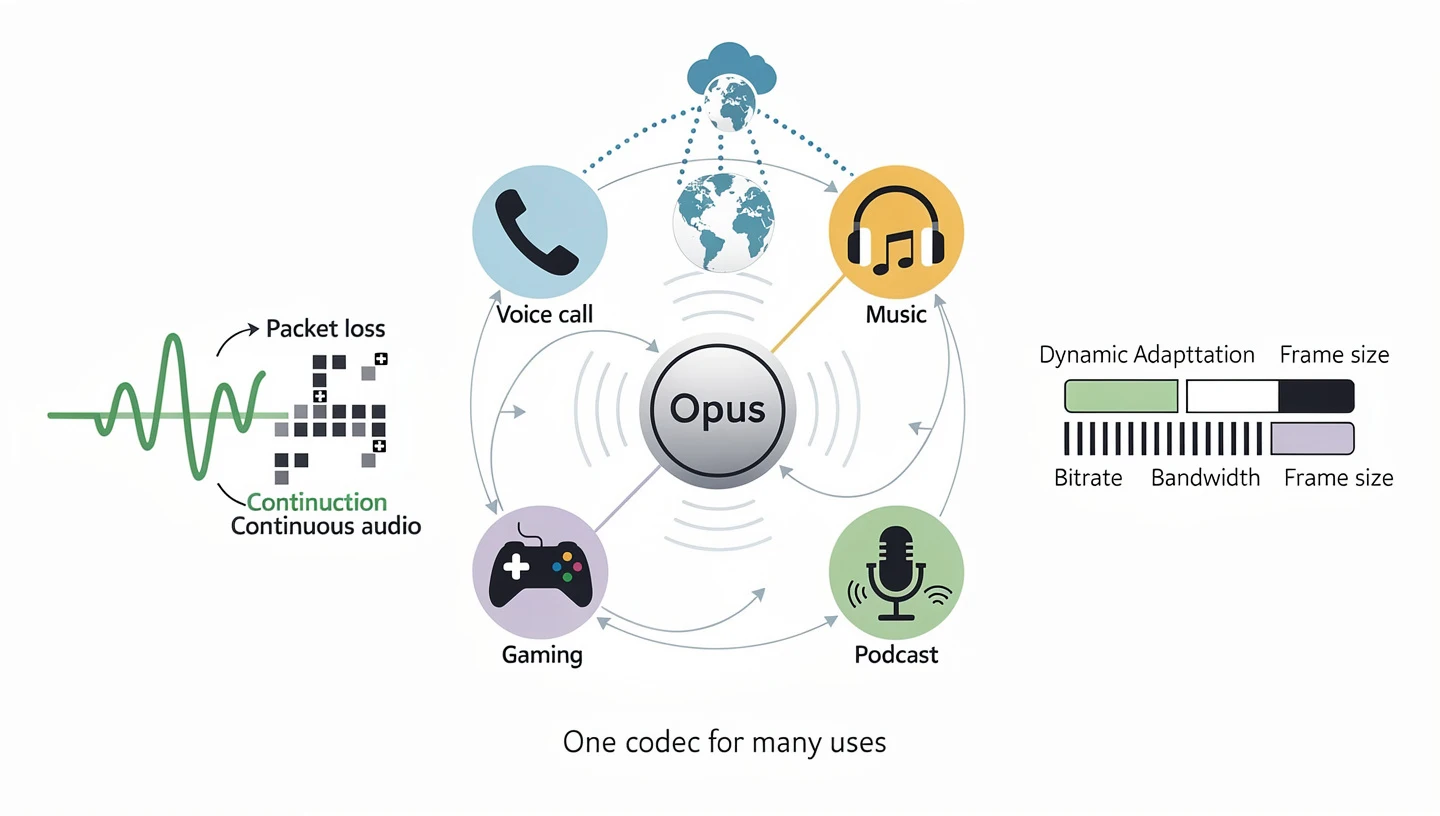
It also holds up on a bad connection. The format includes packet loss concealment and in-band forward error correction, so a call keeps going when a few packets go missing. For anyone who has heard a robotic voice on a weak signal, that matters more than any listening test.
History and standardization
Work started in 2010, when a group of companies and the Xiph.Org Foundation sent a proposal to the IETF. The group combined two existing codecs, SILK from Skype and CELT from Xiph.Org, and the result became RFC 6716 in September 2012. The reference implementation is called libopus, and the project still publishes new releases.
Since then it has become the default real-time codec on the web. WebRTC requires it, Chrome and Firefox play it natively, and the file container has its own RFC. In short, it went from a proposal to the standard answer in about a decade.
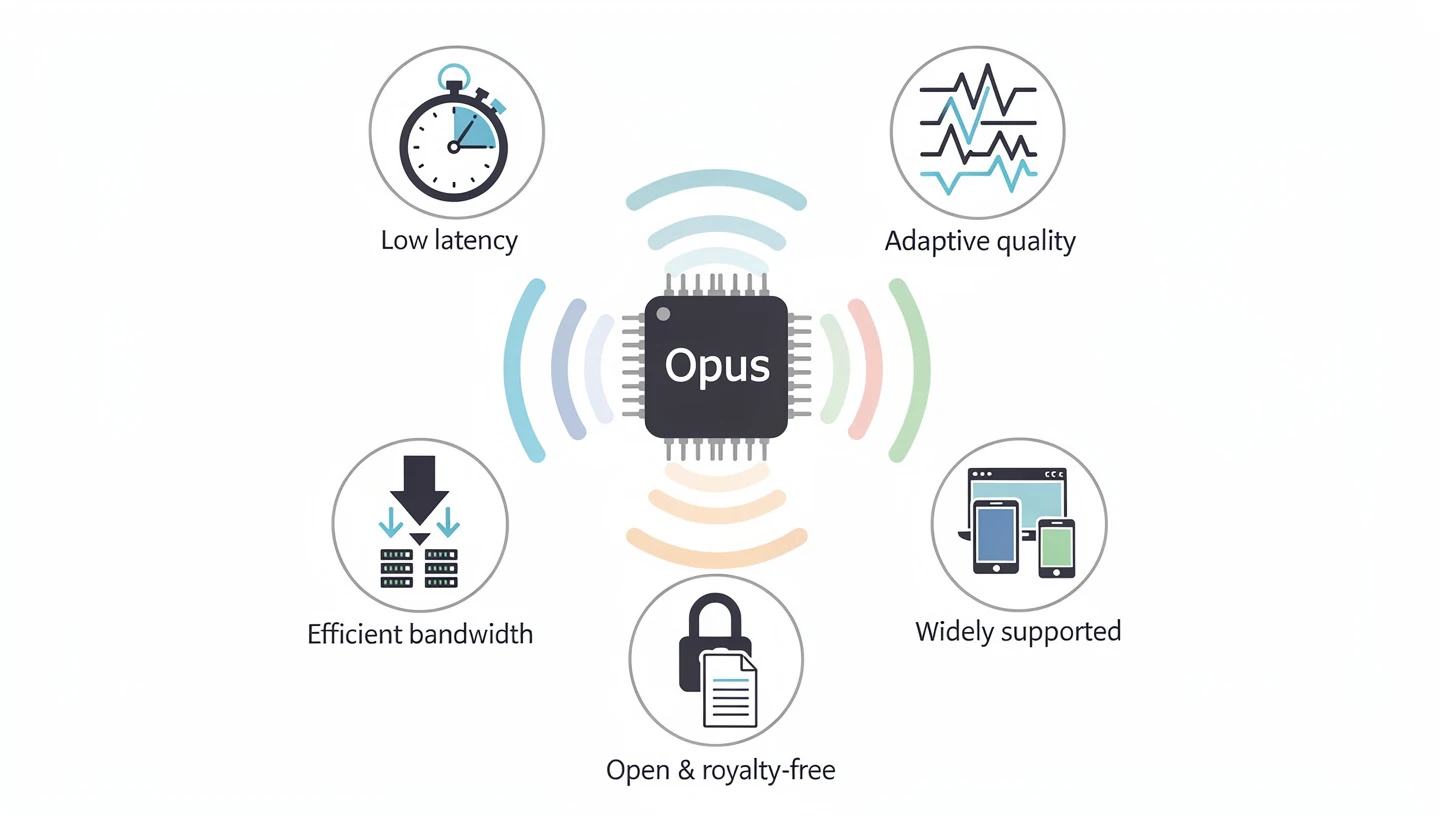
Why Opus is used: main advantages
The codec spread this fast because it solves several problems at once. Developers do not have to pick one codec for calls and another for music, and users get a stream that adapts to the connection.
Low latency
Short frames and a small look-ahead keep the delay low, around 5 ms at the minimum and 26.5 ms with default settings. A conversation feels natural, and musicians can even play together over a network when the total delay stays near 30 ms.
From narrowband to fullband
One stream can run from a thin phone-quality voice at 6 kb/s up to fullband stereo music. The encoder changes the audio bandwidth when the bitrate drops, so quality degrades gradually instead of falling off a cliff.
Lower bandwidth use
Because it is efficient, the same quality needs fewer kilobits than MP3 or older AAC encoders. That cuts hosting and delivery costs, and it helps users on mobile data or weak Wi-Fi.
Free and open
The license is permissive, the specification is public and the reference code is open source. Implementers do not pay royalties, which is one reason it ended up inside browsers, operating systems and apps without a fight over patents.
Support on most platforms
Every major browser plays it, Android supports it and many media players handle it. Gaps remain on older hardware, which the compatibility section covers.
How Opus works: SILK, CELT and hybrid mode
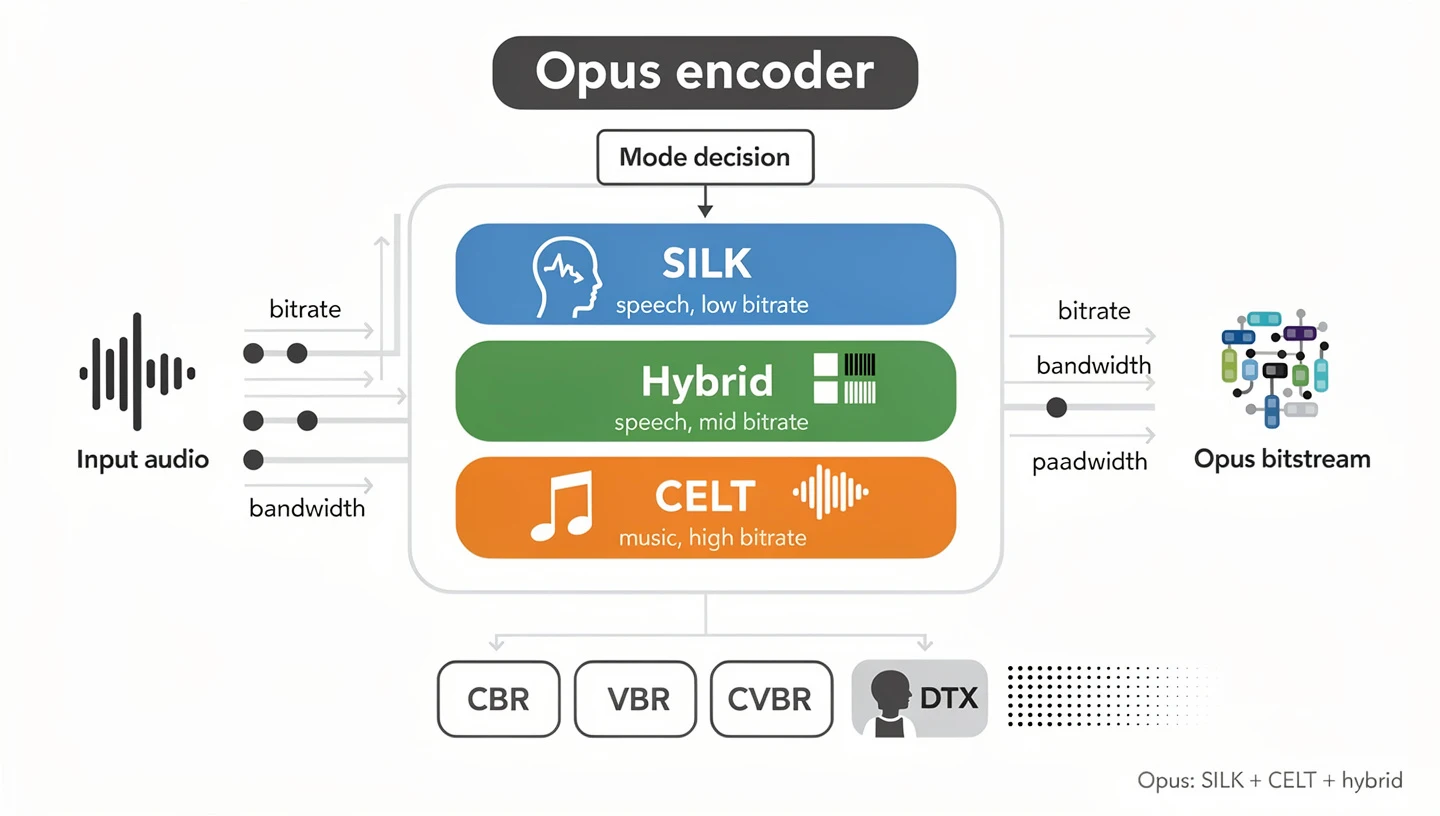
Two codecs sit under one roof, plus a layer that decides which one to use. The encoder looks at the bitrate, the bandwidth and the type of sound, then picks the mode that gives the best result. You can also force a mode from the command line.
SILK for speech
SILK is the speech engine and it comes from Skype. It uses linear predictive coding, which models the human voice and needs very little data. It covers the low end of the bitrate range, roughly 6 to 40 kb/s, which is why a phone call can sound clear at a tiny bitrate.
CELT for music
CELT is the music engine and it works with an MDCT transform. It handles higher bitrates and full bandwidth, and it keeps delay low because it uses short frames. When you stream stereo music at 96 kb/s, CELT is doing the work.
Hybrid mode and automatic switching
In hybrid mode SILK codes the lower part of the spectrum and CELT adds the highs, which suits wideband and fullband speech at medium bitrates. The encoder can switch between the three modes from one frame to the next without a gap or a click. Both engines share one range encoder, so the stream stays a single, compact bitstream.
Bitrate control: CBR, VBR and DTX
The encoder works in variable bitrate (VBR) mode by default, which spends more bits on complex passages and fewer on quiet ones. Constant bitrate (CBR) keeps the rate fixed and suits strict network limits, and constrained VBR sits between the two. The bitrate can change while a stream is live, so a call can drop to a lower rate when the connection gets worse.
Another feature is discontinuous transmission (DTX). When nobody is speaking, the encoder stops sending full packets and only sends occasional updates, which saves bandwidth in calls. On the receiving side, WebRTC players use a jitter buffer such as NetEQ to smooth out packets that arrive late or out of order.
Opus audio codec specs and technical limits
The numbers below come from the specification and the official documentation. They explain why one codec can serve a call and a music stream, and where its limits sit.
| Mode | Audio bandwidth | Sampling rate | Typical use |
|---|---|---|---|
| Narrowband (NB) | 4 kHz | 8 kHz | Basic phone voice |
| Mediumband (MB) | 6 kHz | 12 kHz | Clearer voice |
| Wideband (WB) | 8 kHz | 16 kHz | HD voice calls |
| Super wideband (SWB) | 12 kHz | 24 kHz | Voice and light music |
| Fullband (FB) | 20 kHz | 48 kHz | Music and high quality voice |
Nothing above 20 kHz gets encoded, since the human ear can’t pick up much beyond that point. The default frame is 20 ms, and packets can carry several frames up to 120 ms. Smaller frames cut delay but cost efficiency, which is the usual trade-off for gaming and live music. A stereo stream is usually downmixed to mono at roughly 19 kb/s and below, unless you force otherwise.
Opus audio codec quality: how good is it?
The short answer is that it gives the best quality at low bitrates of any mainstream codec, and it stays competitive at high ones. Listening tests back this up, but none of them is exact. That is also the official position of the project, which warns against reading a precise value off its own charts.
Quality at different bitrates
The official codec comparison page collects results from HydrogenAudio, Google and Nokia. At 64 kb/s, the codec came out ahead of two AAC-HE encoders and libvorbis. At 96 kb/s, it beat two LC-AAC encoders and even an MP3 encoder running at 136 kb/s. Nokia tested speech quality across several rates and found that variable bitrate gives better results than the constant bitrate curves in the chart.
In practice, many people can’t tell 96 kb/s from the original on normal headphones. Below about 32 kb/s, music starts to lose highs and detail, while speech stays clear for much longer. Since AAC is the main rival at these rates, our guide to the AAC codec explains how it works and where it still wins.
Speech quality and latency in calls
For voice, the numbers are even better. Wideband speech sounds clean at about 12 kb/s, and fullband speech at around 16 kb/s. The low delay is the other half of the story, because a call feels natural when the total lag stays well under 150 ms. Short frames of 10 to 20 ms keep the codec’s own contribution tiny, so most of the delay in a real call comes from the network, not from the encoder.
Opus vs AAC and Opus vs MP3
A rule of thumb used by most converters and comparison guides is that 96 kb/s in this format sounds about like AAC-LC at 128 kb/s, and 64 kb/s sounds about like AAC at 96 kb/s. Against MP3 the gap is larger, since MP3 needs roughly 128 to 160 kb/s to reach the same transparency on typical music.
| Codec | Bitrate range | Latency | Licensing | Best for |
|---|---|---|---|---|
| Opus | 6 to 510 kb/s | Very low | Royalty-free | Calls, streaming, podcasts, music |
| AAC | 8 to 512 kb/s | Medium | Licensed | Music and video on phones |
| MP3 | 32 to 320 kb/s | Medium | Patents expired | Legacy players |
| Vorbis | 16 to 500+ kb/s | Medium | Royalty-free | Games and open media |
The weak spot is not quality but reach. MP3 and AAC play almost everywhere, including old car stereos and hardware players, while this format can still fail on older devices. If you also use wireless earbuds, our comparison of SBC and AAC shows how the same trade-offs play out over Bluetooth.
Opus vs Vorbis and Speex
Vorbis is another royalty-free format from Xiph.Org and it was popular in games and open media. In the listening tests on the official comparison page, Opus came out ahead of libvorbis at 64 and 96 kb/s. Speex was the older Xiph codec for speech, and Opus was designed to replace it, so new projects have little reason to pick Speex today.
Opus vs FLAC and lossless audio
It is lossy, so it will never match FLAC for archiving. FLAC keeps every bit of the source, and its files are roughly half the size of WAV. That makes it the right pick for a master copy, while the lossy format is the right pick for what you actually stream or carry on a phone.
Always encode from a lossless source when you can. Converting an MP3 to Opus does not bring back lost detail, it only adds a second round of compression. If you want to know where this sits next to hi-res audio, the short version is that the goal here is efficiency, not studio resolution.
Best Opus bitrate settings for voice, podcasts and music
The right bitrate depends on what you are encoding and how many channels it has. The Xiph.Org recommendations are a good starting point, and most converters use almost the same values.
| Use case | Channels | Bitrate |
|---|---|---|
| VoIP and calls | Mono | 10 to 24 kb/s |
| Audiobooks | Mono | 24 kb/s |
| Podcasts | Stereo | 32 kb/s |
| Music streaming and radio | Stereo | 64 to 96 kb/s |
| Music storage | Stereo | 96 to 128 kb/s |
| Surround 5.1 | 6 | 128 to 256 kb/s |
Going above 256 kb/s is rarely worth the extra bandwidth. For archives, switch to FLAC instead. A typical encode with FFmpeg and libopus looks like this:
ffmpeg -i input.wav -c:a libopus -b:a 96k output.opus
The official opusenc tool does the same job with opusenc --bitrate 96 input.wav output.opus. Both use variable bitrate by default, which is what you want in almost every case. You can also set the complexity from 0 to 10, where 10 is the default and gives the best quality at the cost of CPU time.
Encoder options: application mode, frame size and complexity
Beyond the bitrate, three settings change how the encoder behaves. The application mode comes in three types: voip for speech, audio for music and lowdelay for the shortest delay. The frame size can be 2.5, 5, 10, 20, 40 or 60 ms, and 20 ms is the default. Bigger frames are more efficient, while smaller ones cut delay. The complexity value trades CPU time for quality, and the default of 10 gives the best result.
Settings for radio, podcasts and voice
- Speech and talk radio: mono at 24 to 32 kb/s with voip mode keeps voices clear.
- Podcasts: stereo at 32 kb/s, or mono at around 24 kb/s if the show is only speech.
- Music radio and streaming: stereo at 64 to 96 kb/s, with 20 ms frames.
- Interactive voice: 10 to 24 kb/s mono with short frames, so the delay stays low.
Common mistakes when encoding
- Re-encoding a lossy file: going from MP3 to Opus adds a second round of compression and never restores lost detail.
- Judging by bitrate alone: 96 kb/s in one codec does not sound the same as 96 kb/s in another.
- Using a delivery file as a master: keep a WAV or FLAC original and encode copies from it.
- Setting the bitrate too high: above 256 kb/s the gain is tiny and the files only grow.
- Assuming codec support means playback everywhere: the container and the device matter too.
Where Opus is used
It has become the standard for anything interactive and for a growing share of streaming. You will meet it in places that never mention the name.
- WebRTC and VoIP: browser calls, conferencing and live chat use it as the required codec.
- Chat and voice apps: Discord, WhatsApp and Zoom rely on it for voice.
- Video platforms: YouTube serves these audio streams next to AAC.
- Live streaming: low-latency broadcasts and podcasts use it where the player supports it.
- Games: voice chat favors it because of the short delay.
One place where it is not used is Bluetooth music. Standard Bluetooth audio relies on SBC, AAC and a few vendor codecs, while the newer LE Audio standard uses LC3. Our explainer on the LC3 codec covers how that works and how it compares.
Is Opus good for streaming?
Yes, and live streaming is where it fits best. Low delay and low bandwidth use matter in a broadcast, and the stream copes with packet loss, so listeners on a weak connection hear a few glitches instead of long gaps. In a WebRTC setup, a presenter can send audio to a server, which then passes it to viewers in the browser.
Calls and conferencing
Browser calls, group meetings and game chat all use it as the required or default codec. A typical call runs mono at 16 to 32 kb/s, and the server mixes or forwards the streams without changing the codec.
Radio, Shoutcast and Icecast
Internet radio servers such as Icecast can carry it inside an Ogg stream. Shoutcast support is more limited, so many stations offer an AAC or MP3 mount as a backup. The smart move is to check which players your listeners use, because HTML5 players in modern browsers handle it, while older hardware radios may not.
Opus files, containers and compatibility
The stream needs a container before it becomes a file. The container decides which extension you see and which players can open it.
Which containers support Opus
- Ogg Opus: the standard for audio files, usually named .opus.
- WebM: used by browsers and by YouTube streams.
- MKV: flexible and good for video with this audio.
- MP4: supported in newer tools, with more mixed player support.
- MPEG-TS: used in some broadcast and streaming setups.
Browser support is wide. Chrome 33, Edge 14 and Firefox 15 and newer play it, and Safari handled it only inside a CAF file at first, with newer iOS and macOS releases adding broader playback. The point to remember is that older hardware, car stereos and some TVs may still ignore it.
How to open an .opus file on Windows
The easiest way to open an .opus file on Windows is the VLC player, which plays it without extra codecs. Windows Media Player can fail with some files, depending on the version. A third-party player works too, and if you need the file elsewhere, you can convert it to MP3 or WAV with FFmpeg or a desktop converter.
Can iPhones play Opus files?
Recent iPhones can play these files in several apps, but the experience is not as consistent as with AAC. A CAF wrapper is the safest option on older iOS versions, and a converter is the fallback when a player refuses the file.
Support by platform
| Platform | Support |
|---|---|
| Chrome, Edge, Firefox, Opera | Native in audio and video elements |
| Safari, iOS, macOS | CAF at first, wider support in recent releases |
| Android | Native on current versions |
| Windows | Works in VLC, mixed in built-in apps |
| Linux | Native in most players through libopus |
How to convert files to and from Opus
FFmpeg handles most conversions with one line. Start from the best source you have, since every lossy step costs some quality.
- WAV or FLAC to Opus:
ffmpeg -i input.flac -c:a libopus -b:a 96k output.opus - MP3 to Opus:
ffmpeg -i input.mp3 -c:a libopus -b:a 64k output.opus - Opus to MP3:
ffmpeg -i input.opus -c:a libmp3lame -q:a 2 output.mp3 - Opus to AAC:
ffmpeg -i input.opus -c:a aac -b:a 128k output.m4a
Converting to a lossy format from another lossy one cannot restore detail, so use it only when a device refuses the original. Graphical tools and online converters do the same job, and many of them wrap FFmpeg anyway.
Audio codec Opus 251: what the number means on YouTube
The label audio codec Opus 251 comes from YouTube’s internal format list, where 251 is the number of one specific audio stream. It stands for a high-bitrate stream in a WebM container, and it carries audio only, with no video. Tools such as yt-dlp and youtube-dl display it when you list the available formats.
What itag 251 is
The number is called an itag, and YouTube does not document it, so it has no official public meaning. From user reports and MediaInfo checks, format 251 is Opus in WebM, stereo, with a 48 kHz sampling rate. Related itags exist too, such as 249 and 250 for lower bitrates, and the AAC streams use different numbers.
How to find and download format 251 with yt-dlp
To see the list of formats for a video, run yt-dlp -F VIDEO_URL. If 251 appears, you can fetch only that audio stream with yt-dlp -f 251 VIDEO_URL. The result is a .webm file with an Opus track inside, which you can convert to .opus or another format with FFmpeg if you need it.
Quality of itag 251
Most tools label it as about 160 kb/s. Measured files vary, with MediaInfo reports ranging from roughly 88 kb/s to 159 kb/s depending on the video, because the encoder uses variable bitrate. For listening, that is enough to sound close to the original on any normal setup, and re-encoding it to another lossy format only makes quality worse.
Audio codec Opus not compatible with FLV: why it happens and how to fix it
The error audio codec Opus not compatible with FLV appears when FFmpeg tries to put this audio track inside an FLV file. The FLV container is old, and it only accepts a short list of audio codecs. Opus is not on that list, so the muxer stops and returns an error instead of writing the file.
Why FFmpeg shows this error
The FLV muxer in FFmpeg accepts MP3, PCM, ADPCM SWF, AAC, Nellymoser and Speex, and Speex only at 16 kHz mono. The message in the source reads close to “Audio codec opus not compatible with FLV”. The format itself was tied to Flash, which reached its end of life on December 31, 2020. RTMP streaming with FLV never had official support for it either, as a moderator on the OBS forum pointed out, which is why streaming services stayed on AAC.
Fix 1: switch the container
If you only need a file, put the track in a container that supports it. MKV, WebM, Ogg and MP4 all work. You can copy the streams without re-encoding, for example ffmpeg -i input.webm -c copy output.mkv. Nothing is lost, and the process takes a few seconds.
Fix 2: re-encode the audio to AAC or MP3
If the file has to be FLV, convert the audio to a codec the container accepts. With H.264 video you can keep the picture as it is: ffmpeg -i input.mkv -c:v copy -c:a aac -b:a 128k output.flv. Use MP3 instead of AAC with -c:a libmp3lame if the target player needs it. Expect a small quality drop, because the audio goes through a second lossy step.
Opus in Enhanced RTMP (E-FLV)
There is a newer route. The Enhanced RTMP specification extends the FLV format and lists Opus among its new audio codecs, together with AC-3, E-AC-3 and FLAC. FFmpeg and OBS are both named as projects working on support. Which version of each tool handles it depends on the build, so check your release notes before you rely on it, and test with a short clip first.
What is new in libopus and what comes next
The format itself is frozen by RFC 6716, but the reference encoder keeps improving. The release notes for libopus 1.6 mention a significant improvement to Deep Redundancy (DRED), a feature aimed at surviving heavy packet loss. Newer releases also bring speed gains, bug fixes and better tools, and the project publishes each update on opus-codec.org.
Work on higher sampling rates is also happening. Some sources describe an experimental extension that goes beyond 48 kHz, but it is not part of the standard, so do not count on it yet. For now, you can expect the codec to remain the main choice for internet audio for years to come. On the Bluetooth side, the picture is different, since the newer LE Audio standard moves to LC3, which our LE Audio explainer covers in detail.
Pros and cons of the Opus audio codec
It wins on efficiency and latency, and loses mostly on legacy reach.
- Pros: free and open, great quality at low bitrates, very low latency, one codec for voice and music, resilient on poor networks, supported by all major browsers.
- Cons: some old devices and car stereos can’t play it, FLV and some older containers don’t accept it, it is lossy so it doesn’t replace FLAC, and hardware decoding is rare on phones.
Should you use Opus? Verdict
Use it for calls, game chat, podcasts, web audio and any streaming where bandwidth is tight. The codec gives a clean result at 32 kb/s for speech and at 96 kb/s for stereo music, and it costs nothing to use. Stick with AAC when your audience plays files on older hardware, and with FLAC when you want an archive.
| Job | Best pick |
|---|---|
| Calls and game chat | Opus |
| Live streaming with a tight bandwidth | Opus |
| Podcasts and audiobooks | Opus, with AAC as a backup |
| Music on phones and old players | AAC or MP3 |
| Archive and master copies | FLAC |
If you are comparing codecs for wireless headphones, remember that Bluetooth works differently. Our overview of Bluetooth codecs including LDAC, LC3, aptX and SBC shows what each one offers and how they differ in sound and range.
Frequently asked questions
Is Opus better than MP3?
Yes, in almost every case. It sounds better than MP3 at the same bitrate, especially below 128 kb/s, and it handles voice and music with one codec. MP3 only wins on compatibility with very old players.
Is Opus better than AAC?
At low and medium bitrates, yes. At 96 kb/s it sounds close to AAC-LC at 128 kb/s, and its latency is much lower. AAC is still the safer choice for wide device support, particularly on Apple hardware.
Is Opus lossless?
No. It is a lossy codec, so it throws away some data to save space. If you need a perfect copy of the source, use FLAC or another lossless format.
What bitrate should I use for Opus?
Use 24 to 32 kb/s for speech and podcasts, 64 to 96 kb/s for music streaming, and 96 to 128 kb/s for music you plan to keep. Going above 256 kb/s rarely helps.
Does Opus work with Bluetooth earbuds?
Not as a standard Bluetooth music codec. Earbuds usually use SBC or AAC, and newer models add LC3 or a vendor codec. Opus mostly lives in apps, browsers and calls. For how earbuds are built and which parts matter, see our guide to earbud technologies.
Can iPhones play Opus files?
Recent versions of iOS can play them in many apps, but support is less consistent than for AAC. Older iPhones work best with a CAF file, and converting to AAC is the fallback.
What does Opus 251 mean on YouTube?
It is YouTube’s internal itag for an audio-only stream in WebM, usually labeled about 160 kb/s. Use yt-dlp -F to list the formats and yt-dlp -f 251 to download it.
Why can’t FLV store Opus audio?
The classic FLV container only supports codecs such as MP3, AAC, PCM, Nellymoser and Speex. Opus is missing from that list, so FFmpeg refuses to mux it. Change the container to MKV, WebM or Ogg, or convert the audio to AAC.
Is AAC better than MP3?
Yes, at the same bitrate. AAC was designed as the successor to MP3 and gives cleaner sound, especially below 192 kb/s. MP3 still plays on every old device, which keeps it alive.
Why is Opus considered the future of audio streaming?
It combines low delay, good quality at low bitrates, resilience to packet loss and a free license. Browsers, calling apps and video platforms already use it, so adoption keeps growing.
Does Opus work with Shoutcast and Icecast players?
Icecast can carry it in an Ogg stream and modern HTML5 players play it. Shoutcast support is more limited, so many stations keep an AAC or MP3 stream next to it.
How can I reduce bandwidth costs without losing audio quality?
Use variable bitrate and a lower rate that fits the content, such as 32 kb/s for speech and 64 to 96 kb/s for music. Keep an AAC or MP3 fallback for old devices.
Why does an audio file play in one app but not another?
The app may lack support for the codec or the container. An Ogg or WebM file with this audio can fail in an older player, while a converted AAC or MP3 file plays everywhere.
Is the Opus audio codec free to use?
Yes. It is open and royalty-free, standardized as RFC 6716, so you can use it in apps and products without paying license fees.
What is the best Opus audio codec quality setting for music?
For most music, 96 kb/s in variable bitrate mode with the default complexity is the sweet spot. Raise it to 128 kb/s if you want extra headroom for storage, and use FLAC for archives.